 Boris Tane
 Fix “Build exceeded maximum allowed runtime” on Netlify
Explore with AI
Build exceeded maximum allowed runtimeNetlify stopped your build because it ran past the site's build time limit, which by default is 15 minutes for the build command plus 5 minutes for post-processing. Most of the time the build actually finished but left a process running that never exits, so find that process and stop it. If the build really does need more time, make it faster or raise the site's build_timelimit through the Netlify API.
Production down? Get help now Our founding team can help you get production back up.On this page
Netlify prints this line at the end of a deploy log when it has stopped a build for running too long. Often nothing above it looks wrong. The framework says the build is done and the output folder is ready. Then the log goes quiet until the timeout hits.
There are two very different ways to hit this limit. Either the build is still doing real work when time runs out, or the work finished and something it started never exited. The fix for one does nothing for the other, so the first job is to work out which one you have.
What “maximum allowed runtime” means on Netlify
Builds on Netlify are a metered resource, and every site has a build time limit. Netlify’s support guide on the build time limit gives the default: 15 minutes for the build, plus 5 more minutes for any post-processing the build system does. The setting is stored per site as build_timelimit, in seconds. A value of null means the default of 900 seconds applies. Once a build goes past the limit, Netlify stops it and fails the deploy with this message.
The limit is there so a build that hangs can’t burn through your build minutes. Without it, one stuck build could run for hours and use up your whole monthly allowance.
Two details explain most of the confusion around this error:
- Netlify waits for every process, including ones your build command didn’t start directly. The Hung or stuck build guide says the build environment requires all processes to complete. If your framework exits with the right code but leaves a child process running, the build doesn’t end.
- The build machine may be smaller than your laptop. Netlify’s guide on how long builds should take says a build is guaranteed only 4 CPUs and 8 GiB of memory, and may compete for resources when the build network is busy. A build that takes 12 minutes on your machine can cross 15 minutes on Netlify.
Finished or still working: reading your deploy log
Open the failed deploy and look at the last lines of real output before the error, along with their timestamps.
- A long silence after a success message. If your framework printed its done line and nothing new appeared until the error, the build finished and something kept running. That is cause 1 below.
- Steady progress right up to the cut-off. If pages, images or bundles were still being logged when the error appeared, the build was still working. That is cause 2.
- The build command finished and the log moved on to deploying or processing files. That points to post-processing a very large deploy, which is cause 3.
Then reproduce the build on your own machine. Netlify’s build troubleshooting tips say a build has to work locally before anything else, and that differences in package versions are the leading cause of failed builds. Time your build command and watch whether you get your shell prompt back:
time npm run buildIf the output stops but the prompt never comes back, something is still running. That matches what happens on Netlify. You can also build locally with the Netlify CLI:
npm install -g netlify-cli
netlify build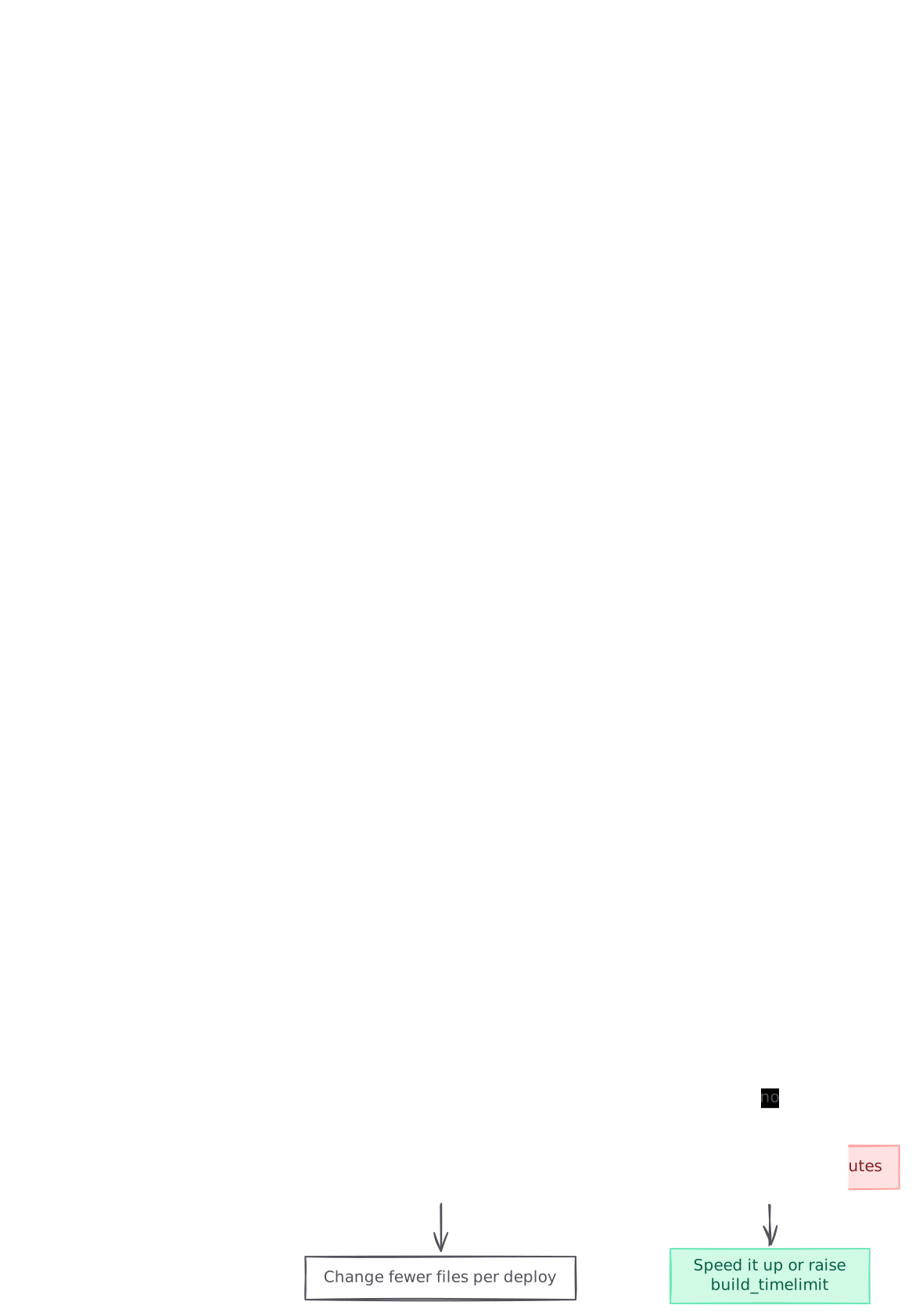
graph TB A[Build exceeded maximum allowed runtime] --> B{Log silent after done message?} B -->|yes| C[A process never exited] C --> D[List processes with ps auxw] B -->|no| E{Build command finished?} E -->|yes| F[Slow processing of many files] E -->|no| G[Build needs over 15 minutes] G --> H[Speed it up or raise build_timelimit] F --> I[Change fewer files per deploy] style C fill:#fee2e2,stroke:#fca5a5,color:#7f1d1d style G fill:#fee2e2,stroke:#fca5a5,color:#7f1d1d style D fill:#d1fae5,stroke:#6ee7b7,color:#065f46 style H fill:#d1fae5,stroke:#6ee7b7,color:#065f46
Cause 1: a process that never exits after the build
This is the most common cause, and raising the limit doesn’t fix it. A hung build waits until any limit runs out, so a higher limit only means it burns more minutes before failing.
Netlify’s hung build guide names two culprits: a watch command that checks for file changes, which is useful in development but has no place in a production build, and background child processes. Other things to check are a server started by a script, and code that runs during static generation. The Node.js timers docs say the event loop keeps running as long as a setTimeout or setInterval timer is active, so an interval that is never cleared keeps the process alive after the last page is written. Open connections to a database are worth checking too.
Confirming a lingering process
- Change the build command so it lists every running process once the build finishes, then fails on purpose. Netlify’s guide suggests adding
&& ps auxw ; falseto the end of your command. Innetlify.tomlthe line looks like this:
[build]
command = "npm run build && ps auxw ; false"- Push and open the deploy log. Once your build finishes, you will see a process table. Look past the shell and your build command for anything that shouldn’t still be running, such as a dev server, a file watcher, a database client or a worker pool.
- Treat this deploy as a diagnostic only. Read the listing, then move on to the fix.
Stopping it
- Remove development-only commands from the build. If your
buildscript chains a watcher or starts a server, split it out. Keep a separatedevscript for those. - Close what your build-time code opens. If a data-loading step connects to a database or opens a socket, close it once the data is fetched:
const client = await connect(process.env.DATABASE_URL);
try {
  const pages = await client.query('select slug, body from pages');
  await writePages(pages);
} finally {
  await client.end();
}- Keep browser-only code out of static generation. Generators that render components at build time also run the timers inside them. Guard intervals and other client-only work so they only run in the browser:
if (typeof window !== 'undefined') {
  const id = setInterval(refresh, 5000);
  // clear it when the component unmounts
}- Take the diagnostic out again. Put the build command back to normal without
ps auxw ; false, push, and check that the deploy log moves straight from your framework’s done line to the deploy step.
Cause 2: the build needs more than 15 minutes
Some builds are not stuck at all. Netlify’s guide gives the typical cases: many thousands of HTML, CSS and JavaScript files to process, or build-time transformations of thousands of images. You can tell this is your case when the log shows steady progress until it is cut off and your local build takes close to 15 minutes or more. The guide on build duration adds that a site that builds slowly locally will also build slowly on Netlify.
Make the build faster
Netlify’s guide on optimising build time and the troubleshooting docs list these changes:
- Keep the dependency cache warm. Netlify caches npm and Yarn modules between builds. Any change to
package.jsonor the lockfile reruns the install, though it still uses the cache to some degree. The troubleshooting tips suggest retrying a failed build with a cleared cache, using Retry without cache, to check whether that works better. - Don’t install what the build doesn’t need. Some packages take a long time to install. Set the
NODE_ENVenvironment variable toproductionand move test-only tools intodevDependencies. - Configure plugins with care. Some generator plugins use a lot of memory and run slowly, and the guide notes they can cause builds to fail with a timeout. Check which plugin’s step takes the longest in your log.
- Stop building commits that don’t need it. Put
[skip ci]or[skip netlify]in a commit message to skip that build. Limit which branches build under Branches and deploy contexts, or add anignorecommand innetlify.toml, which file-based configuration runs as a Bash or Node.js command to decide whether to rebuild:
[build]
  ignore = "git diff --quiet $CACHED_COMMIT_REF $COMMIT_REF -- site/"
Raise the site’s build_timelimit
Netlify’s dashboard has no setting for the limit. You change it through the API, and the Netlify CLI is the easiest way to call it. These are the steps from Netlify’s support guide:
- Install the CLI, sign in, and check that you are authenticated:
netlify login
netlify status- Find the Site ID under Site settings > General > Site details, then read the current value:
netlify api getSite --data '{ "site_id": "YOUR_SITE_ID" }' | jq '.build_timelimit'If you get null, the 900-second default applies.
- Set a new limit in seconds:
netlify api updateSite --data '{ "site_id": "YOUR_SITE_ID", "body": { "build_timelimit": 1800 } }'- Run the
getSitecommand again. It should print1800. Then trigger a new deploy.
You can set up to 1800 seconds (30 minutes) yourself through the API. A larger value returns JSONHTTPError: Unprocessable Entity. The guide says Netlify’s support team can set longer limits, so open a support request with your Site ID if 30 minutes isn’t enough. An Unauthorized response means you aren’t signed in or your API key is wrong.
Build somewhere else and deploy the output
Manual deploys have no build time limit because they have no build step. The build duration guide says their time depends mostly on the total size and number of files. If your build needs more time than Netlify allows, run it in another CI system and upload the result with the CLI:
npm run build
netlify deploy --prod --dir=dist
The build configuration overview covers this setup. You stop builds on Netlify, build with the CLI elsewhere, and publish manual deploys with the CLI or API.
Cause 3: post-processing a very large deploy
The build command can finish on time and the deploy can still take a long while afterwards. Netlify’s troubleshooting docs say sites with tens of thousands of HTML files can take many minutes to process, and that this shouldn’t cause the deploy to fail on its own. They also say files over 10 MB are not well supported by the CDN and may fail to upload. The build duration guide says the time for processing and uploading is added on top and doesn’t need to complete within the initial 15 minutes. So if the error appears while files are processing, check for a lingering process as well.
Either way, a deploy that changes fewer files gets through processing faster. Netlify’s optimisation guide points out that every changed file has to be stored after the build. A build that renames or rewrites unrelated files every time is slower to deploy than one that changes only what it needs to. Host very large media elsewhere.
Keeping builds under Netlify’s limit
Once the build passes, add a check so the next regression fails fast in your own CI, before Netlify stops it:
- name: Build must finish and exit within the Netlify limit
  run: timeout 900 npm run build
The aim is for the job to fail if the build is still running after 900 seconds, which would catch a slow build and a hung process the same way. Check how timeout behaves on your CI runner before you rely on it. If you have raised build_timelimit, set the check a little below the new value so you see a warning before you reach the limit.
Three habits help too:
- Watch the trend. Look at build durations on the team’s Builds page every so often. Builds rarely jump from 5 minutes to 16 in one commit. They creep up as content and dependencies grow.
- Keep the build command for building only. Watchers, servers and anything long-running belong in the
devscript. - Only raise the limit once you know the build isn’t hung. Run the
ps auxwcheck first. A higher limit on a hung build only makes each failure use more build minutes.
Common questions.
What is Netlify's default build time limit?
Netlify's support guide puts the default at 15 minutes for the build, plus 5 more minutes for post-processing. It is stored per site as build_timelimit in seconds, and a null value means the 900-second default applies.
Can I raise the build time limit myself?
Yes, up to 30 minutes. Run netlify api updateSite with a body of build_timelimit set to 1800. Values above 1800 return Unprocessable Entity, so ask Netlify support with your Site ID if you need longer.
Can I set the build time limit in netlify.toml or the dashboard?
No. According to Netlify's support guide, the setting is only available through the API, so you read and change it with netlify api getSite and netlify api updateSite.
My log says the build completed, so why did it time out?
Netlify waits for every process the build started to exit, including child processes. A file watcher, a background child process or an interval timer that is never cleared can keep the build alive until the limit. Add && ps auxw ; false to the build command to see what is still running.
Why does my build take longer on Netlify than on my laptop?
A Netlify build is guaranteed only 4 CPUs and 8 GiB of memory, and may compete for resources when the build network is busy. Different package versions can also change build behaviour, so pin your Node and package versions to match your local setup.
Do manual deploys have a build time limit?
No. A manual deploy with the CLI or drag and drop has no build step on Netlify, so the build time limit doesn't apply. You can build in another CI system and upload the output with netlify deploy --prod --dir=dist.
Does clearing the build cache fix a timeout?
It can be worth a try. Netlify's troubleshooting tips suggest retrying a failed build with a cleared build cache to check if it works better, which you can do with Retry without cache. If a lingering process is holding the build open, run the ps auxw check as well.
Sources (8)
- Netlify Support Guide: How to use the API to increase your site's build time limit
- Netlify Support Guide: Hung or stuck, but seemingly successful build
- Netlify Support Guide: How long should Netlify builds take?
- Netlify Support Guide: How can I optimize my Netlify build time?
- Netlify Docs: Build troubleshooting tips
- Netlify Docs: Build configuration overview
- Netlify Docs: File-based configuration
- Node.js Docs: Timers
Boris Tane is the founder of Polylane. He previously founded Baselime, observability for the future of the cloud, which Cloudflare acquired. At Cloudflare he built and led the Workers observability team.
Related
- Fix “context deadline exceeded” in Docker and fly deploy What “context deadline exceeded” means in Docker and fly deploy, how to find the call that timed out, and the fixes for WireGuard, builders and daemons.
- How to debug Vercel function timeouts Debug Vercel FUNCTION_INVOCATION_TIMEOUT 504s: find the slow call with vercel logs and httpstat, fix hangs, set maxDuration and verify on a preview.
- How to correlate incidents with deploys using evidence Learn how to correlate incidents with deploys using release markers, metrics, logs and verified GitHub, Vercel, Cloudflare and Kubernetes change events.
- Fix Netlify “Command did not finish within the time limit” Why Netlify builds fail with “Command did not finish within the time limit”, how to tell a stuck process from a slow build, and how to fix or raise the limit.
- How to reduce Vercel Function cold starts Confirm a Vercel cold start is really the cause, then cut it: fluid compute, smaller bundles, module-scope setup, the right region, memory and caching.