 Boris Tane
 Fix Netlify “Command did not finish within the time limit”
Explore with AI
Command did not finish within the time limitNetlify stopped your build because it ran past the site's build time limit, which is 15 minutes by default. Usually a file watcher, dev server or open connection kept running after the build command finished, and sometimes the build really is too slow for the limit. Find and stop the leftover process, speed up the build, or raise build_timelimit through the Netlify API: you can set up to 1800 seconds yourself, and Netlify support can set it higher.
Production down? Get help now Our founding team can help you get production back up.On this page
The deploy log has been running for a long time, and then it ends with something like Failed during stage 'building site': Command did not finish within the time limit followed by Failing build: Failed to build site. Sometimes the build looked fine right up to that point, and the log even printed the Netlify Build Complete box. Sometimes it went quiet for many minutes first. Either way, no new deploy goes out.
The message comes from Netlify’s build system. It means the clock on your build ran out before every process the build started had exited. It doesn’t say why. That is the part you have to work out, because the fix for a stuck build and the fix for a slow build are different.
What “did not finish within the time limit” means on Netlify
Every Netlify site has a build time limit. Netlify’s support guide on the build time limit says the default for all sites is 15 minutes, plus 5 extra minutes for any post-processing the build system does. Builds use metered build minutes, so the limit stops a stuck build from running for hours and using them all up. When a build goes over, Netlify stops it and fails the deploy with this message.
The key detail is what counts as “finished”. Netlify’s guide on hung or stuck builds says the build environment waits for all processes to complete, including the background ones your build started. Your main command can exit with code 0 and the build still never ends, because some child process is still alive.
These two lines come from one failing build posted on the Netlify forums:
10:43:42 PM: Execution timed out after 17m59.952029417s
Failed during stage 'building site': Command did not finish within the time limit
The duration on the Execution timed out after line tells you roughly how long the build ran before Netlify stopped it. It won’t always read 15 minutes, because Netlify support can change the limit per site.
Telling a stuck build from a slow one
Open the failed deploy in the Netlify UI and read the timestamps. Three patterns cover almost every case:
- The Netlify Build Complete box appears, then the timeout. Your build command finished, but something it started is still running. That is a leftover process.
- A long gap with no output, then the timeout. A step stopped making progress, or it started a process that never returns. Look at the last line before the gap: that step is your suspect.
- Steady output right up to the timeout. The build is doing real work and simply needs more time than the limit allows.
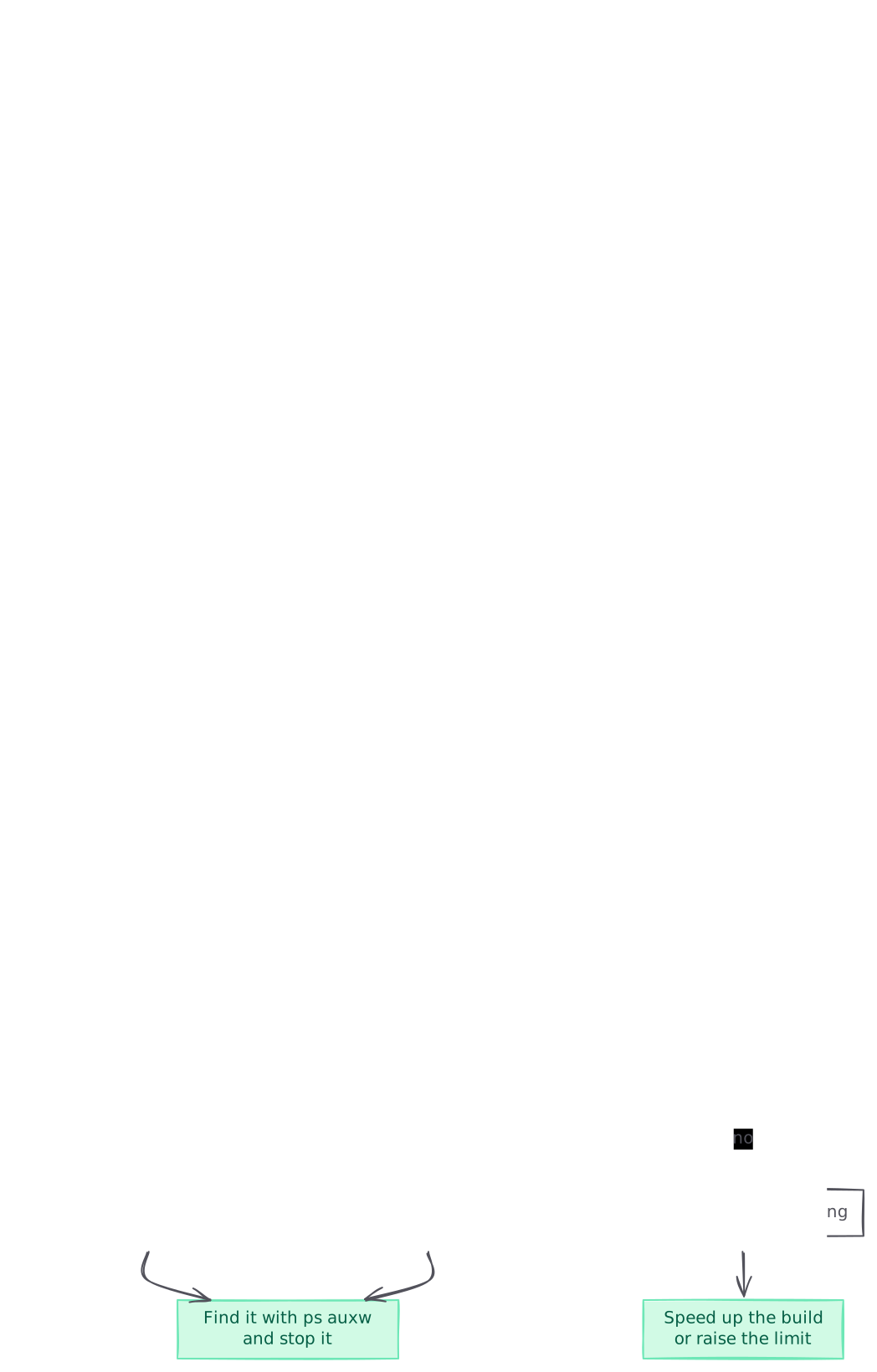
graph TB A[Build fails at the time limit] --> B{Build Complete box in log?} B -->|yes| C[A process outlived the build] B -->|no| D{Log silent for many minutes?} D -->|yes| E[A step hung mid build] D -->|no| F[Build is slow but working] C --> G[Find it with ps auxw and stop it] E --> G F --> H[Speed up the build or raise the limit] style C fill:#fee2e2,stroke:#fca5a5,color:#7f1d1d style E fill:#fee2e2,stroke:#fca5a5,color:#7f1d1d style G fill:#d1fae5,stroke:#6ee7b7,color:#065f46 style H fill:#d1fae5,stroke:#6ee7b7,color:#065f46
Pattern matters before you touch the limit. If a process never exits, a longer limit only makes the build fail later and use more build minutes.
Cause 1: a process keeps running after the build
This is the case Netlify’s support guides return to most often. The guide on how long builds should take puts it plainly: some builds really do run for more than 15 minutes, but most time limit failures turn out to be a started server, or a framework that left processes running.
How to tell it’s yours: the log shows your framework’s success line, or the Netlify Build Complete box, and then nothing until the timeout. The build finishes locally, but the terminal doesn’t give you the prompt back, or it takes a long time to return.
The usual culprits:
- A watch command. The hung build guide names this one: a watcher that checks for file changes is useful in development and never exits on its own.
- A server started by the build command. For example, a build script that runs
npm startor a preview server to prerender pages and never shuts it down. - Child workers left behind by a framework. The same guide links Gatsby issues where
gatsby buildleft a danglingjest-workerchild process. - Open handles in your own scripts. A data-fetching or seeding script that opens a database or socket connection and never closes it keeps Node alive after its work is done.
Fix: find the process and make it exit
- Reproduce locally. Run the exact build command and check it hands back your prompt:
If the exit code prints only after a long wait, or never prints, the problem is in your code and you can debug it on your machine.npm run build; echo "exit code: $?" - If it only hangs on Netlify, list the running processes at the end of the build. Netlify’s hung build guide suggests appending
&& ps auxw ; falseto your build command. Innetlify.toml:
The trailing[build] command = "npm run build && ps auxw ; false"falsefails the build on purpose, so this run never deploys. Read the process list in the log, look for anything that isn’t part of the build image (anodeserver, a watcher, a worker pool), and then remove the debug suffix. - Stop the build from starting that process. Change
--watchordevscripts to their one-shotbuildvariants. If a script must start a server, shut it down before the script ends. - Close what your own scripts open. Call your database client’s close or end method once the work is done, and make sure the script exits:
async function main() { const rows = await db.query("select * from products"); await writePages(rows); } main() .then(() => db.end()) .then(() => process.exit(0)) .catch((err) => { console.error(err); process.exit(1); }); - Redeploy and check that the log goes from the build output straight into the deploy steps.
Cause 2: the build has outgrown the limit
How to tell it’s yours: the log keeps printing progress until the timeout. Builds that used to pass have been getting slower as you add pages, products or images, and now one has tipped over the limit. Netlify’s guide on the build time limit lists the typical reasons: many thousands of HTML, CSS and JavaScript files to process, or transforming thousands of images at build time.
Fix: make the build do less
Netlify’s build optimisation guide gives the levers that apply here:
- Keep the dependency cache warm. Netlify caches your npm, yarn and gem dependencies between builds. A change to
package.json,yarn.lockorGemfile.locktriggers a fresh install, and clearing the cache forces a full reinstall. Use a cleared cache when you are debugging, but don’t make it your default. - Drop heavy dependencies the build doesn’t need. The guide gives Cypress as an example of a package that takes a long time to install. Move test-only packages to
devDependenciesand setNODE_ENVtoproductionso the install skips them:
Check first: if your bundler or framework sits in[build.environment] NODE_ENV = "production"devDependencies, this setting removes it and breaks the build. Move only the packages the build never runs. - Configure your generator for production. The guide notes that some static site generator plugins use a lot of memory and run slowly, enough to cause a timeout. Image processing plugins are the usual offenders. Cache processed images, process fewer sizes, or move image work to request time.
- Change fewer files per deploy. Every changed file has to be stored after the build. Netlify’s build troubleshooting tips note that sites with tens of thousands of HTML files can have long processing times. Stable file names make each deploy smaller.
Fix: raise the build time limit
When the build is doing useful work and you can’t make it fast enough, raise the limit. The setting is build_timelimit on the site, in seconds. Netlify’s guide says it isn’t in the web UI, so you change it through the API, most easily with the Netlify CLI.
- Install the CLI and log in, then confirm with
netlify status. - Find your Site ID under Site settings > General > Site details.
- Read the current value.
nullmeans the default of 900 seconds applies:netlify api getSite --data '{ "site_id": "YOUR_SITE_ID" }' | jq '.build_timelimit'null - Set it to 30 minutes:
netlify api updateSite --data '{ "site_id": "YOUR_SITE_ID", "body": { "build_timelimit": 1800 } }' - Run
getSiteagain and expect1800, then trigger a new deploy.
The guide says 1800 seconds is the most you can set through the API. A larger value returns JSONHTTPError: Unprocessable Entity. Netlify support can set a longer limit: open a support request with your Site ID. Netlify’s guide on build length also says Business-level customers can run much longer builds, and mentions some with a 3 hour timeout.
Fix: build somewhere else and deploy the output
If no limit is enough, move the build off Netlify. The build length guide says manual deploys have no build time limit, because a manual deploy has no build step. Build in your own CI, then upload the output folder with the CLI:
npm ci
npm run build
netlify deploy --prod --dir=public
The time a manual deploy takes then depends mostly on how big your files are and how many there are.
Cause 3: a step hangs partway through
How to tell it’s yours: the log stops at a specific step, such as fetching data from a CMS or API, and stays silent for many minutes until the timeout. Nothing after that line ever prints.
Fix: make the stuck step finish or fail fast
- Note the last line before the gap. That step either started a process that never returns or is waiting on something.
- Run that step alone, locally, with the same environment variables the Netlify build uses. A missing or wrong variable that points a fetch at the wrong host can hang it.
- Add timeouts to network calls in build scripts, so a slow upstream fails the build quickly with a clear error. That beats hanging silently until the limit.
- If the step looks fine locally, use the
ps auxwtrick from Cause 1 to see what is still running on Netlify.
When the cache is the problem
A build that was fast yesterday and slow today, with no code change, can come from the cache. Netlify’s error reference recommends retrying a stalled deploy with Retry without cache with the latest branch commit. That rules out a corrupt cache. The troubleshooting tips also explain how the cache is keyed. A production deploy loads only the production branch cache. A Deploy Preview or branch deploy loads its own cache, and falls back to the production cache until its first successful build. So the first preview on a new branch can be slower than later ones.
If a retry without cache passes, the old cache was at fault. If it times out too, a cold install plus the build is over the limit, and you are back to Cause 2.
The deploy page also has a Why did it fail? button. The error reference says getting a diagnosis this way doesn’t use any credits. Selecting Fix with agent does use credits.
Keeping builds under the limit
- Make the build command exit cleanly. Run it locally in CI-like conditions and check that the prompt comes back. A command that hangs on your laptop will hang on Netlify.
- Never put watch or dev scripts in the build command. Keep
buildanddevas separate scripts, and pointnetlify.tomlat the one-shot build. - Watch the trend in build duration. Compare each build’s duration in the deploy log with your site’s limit. A build that creeps up release after release will cross it eventually, usually on a busy day.
- Skip builds you don’t need. The optimisation guide says
[skip ci]or[skip netlify]in a commit message skips the build. Anignorecommand innetlify.tomlcan skip builds such as Dependabot pull requests:
Fewer builds means fewer queued and wasted runs, though it won’t make a single build faster.[build] ignore = "git log -1 --pretty=%B | grep dependabot" - Raise the limit on purpose. Set
build_timelimitonce you know the build is working, and write down why. That way the next person doesn’t raise it to hide a stuck process.
Common questions.
What is Netlify's default build time limit?
Netlify's support guide puts the default for all sites at 15 minutes, plus 5 extra minutes for post-processing. In the API this appears as a null build_timelimit, which means the 900 second default applies. Support can change it per site, so check the Execution timed out line in your log to see the limit that applied.
How do I increase the build time limit myself?
Use the Netlify CLI: netlify api updateSite with your site_id and a body of build_timelimit set to 1800. The value is in seconds, and 1800 (30 minutes) is the most the API accepts from you. Confirm it with netlify api getSite piped to jq '.build_timelimit', then redeploy.
Why do I get Unprocessable Entity when setting build_timelimit?
The API refuses values above 1800 seconds and answers with JSONHTTPError: Unprocessable Entity. Netlify support can set a longer limit, so open a support request with your Site ID. The same guide notes that support can also set a shorter limit if you want stuck builds to stop sooner.
My log says Netlify Build Complete, so why did it time out?
Your build command finished, but a process it started is still running. Netlify waits for every process to exit, including background ones such as file watchers, preview servers or leftover workers. Append && ps auxw ; false to the build command for one run to list them, then stop the build from starting that process.
Will raising the limit fix a build that hangs?
No. If a process never exits, a longer limit only makes the build fail later and use more build minutes. Raise the limit only when the log shows steady progress up to the timeout, which means the build is working and just needs more time.
Can I avoid the build time limit completely?
Yes. Build in your own CI and upload the result with a manual deploy, for example netlify deploy --prod --dir=public. Netlify's support guide says manual deploys have no build time limit, because they have no build step. Upload time then depends on how many files you deploy and how big they are.
Should I clear the build cache when I see this error?
Retry once with Retry without cache with the latest branch commit, as Netlify's error reference suggests. That rules out a corrupt cache. If the uncached build also times out, a full install plus your build is over the limit, so speed up the build or raise build_timelimit.
Sources (8)
- Build troubleshooting tips (Netlify Docs)
- Error reference (Netlify Docs)
- Support Guide: How to use the API to increase your site's build time limit (Netlify)
- Support Guide: Hung or stuck, but seemingly successful build (Netlify)
- Support Guide: How can I optimize my Netlify build time? (Netlify)
- Support Guide: How long should Netlify builds take? (Netlify)
- Netlify Build Timeout (Netlify Support Forums)
- Netlify
Boris Tane is the founder of Polylane. He previously founded Baselime, observability for the future of the cloud, which Cloudflare acquired. At Cloudflare he built and led the Workers observability team.
Related
- Fix Render “Port scan timeout reached, no open ports detected” Why a Render deploy fails with “Port scan timeout reached, no open ports detected”, how to spot the cause in the logs, and how to bind to 0.0.0.0 on PORT.
- Fix “context deadline exceeded” in Docker and fly deploy What “context deadline exceeded” means in Docker and fly deploy, how to find the call that timed out, and the fixes for WireGuard, builders and daemons.
- How to debug Vercel function timeouts Debug Vercel FUNCTION_INVOCATION_TIMEOUT 504s: find the slow call with vercel logs and httpstat, fix hangs, set maxDuration and verify on a preview.
- How to correlate incidents with deploys using evidence Learn how to correlate incidents with deploys using release markers, metrics, logs and verified GitHub, Vercel, Cloudflare and Kubernetes change events.
- Fix “Build exceeded maximum allowed runtime” on Netlify Why Netlify stops builds with “Build exceeded maximum allowed runtime”, how to tell a hung process from a slow build, and how to fix each one.