 Boris Tane
 How to Monitor Vercel Cron Jobs: Heartbeats, Logs and Alerts
Explore with AI
Give each Vercel cron job its own heartbeat monitor, and have the route ping it only after the work succeeds. Vercel doesn't retry failed runs, and a run that never reaches your function leaves no log line, so a missing ping is the only signal that catches every failure. Use Vercel's runtime logs, filtered to cron requests, to find out why a run failed once the alert fires.
On this page
- What Vercel does when a cron schedule fires
- Why a Vercel cron job can fail without anyone noticing
- What Vercel’s dashboard and CLI show you about cron runs
- Adding a success-only heartbeat to a Vercel cron route
- Making a missed or repeated run safe
- Where Vercel cron monitoring goes wrong
- A checklist for every Vercel cron job
- Watching scheduled jobs on Vercel with Polylane
- Common questions
A Vercel cron job is a schedule in vercel.json that makes Vercel send an HTTP GET to one of your routes. Vercel records what that route returned, and that’s all it records. It doesn’t retry a failed run. It calls delivery best effort. A run that never reaches your function leaves no runtime log at all. So you can’t monitor a cron job by watching for errors alone. You also have to watch for runs that never happened.
The setup that covers both is simple. Each job pings an outside heartbeat URL once its work succeeds. That monitor expects a ping on the job’s schedule plus a grace period, and alerts when one is missing. You then use Vercel’s runtime logs, filtered to cron requests, to work out which failure you hit. The rest of this page covers the ways these jobs fail, the code for the heartbeat, how to size the grace period on each plan, and the mistakes that turn a green dashboard into a missed invoice run.
What Vercel does when a cron schedule fires
Vercel’s docs describe the whole mechanism. When a schedule fires, Vercel makes an HTTP GET request to your project’s production deployment URL, using the path from vercel.json. Each request carries vercel-cron/1.0 as the user agent and an x-vercel-cron-schedule header that holds the expression that triggered it. If you set a CRON_SECRET environment variable, Vercel sends it as Authorization: Bearer ... so your route can reject anyone else.
{
  "$schema": "https://openapi.vercel.sh/vercel.json",
  "crons": [
    { "path": "/api/cron/daily-digest", "schedule": "0 5 * * *" },
    { "path": "/api/cron/sync-orders", "schedule": "*/15 * * * *" }
  ]
}
A few rules from the docs shape everything that follows:
- Production only. Cron jobs run only on production deployments. A route that works on a preview URL has never been called by the scheduler.
- Always UTC. The timezone is always UTC. Names like
MONorJANaren’t supported, and you can’t set both day of month and day of week. - No retries. If a run fails, Vercel doesn’t invoke it again. A daily job that throws waits a full day for its next chance.
- Best-effort delivery. Occasional transient network errors can stop a request from reaching your function. When that happens the function doesn’t run and no runtime log is created. The same scheduled run can also be invoked more than once.
- No redirects. A 3xx response ends the run. Vercel doesn’t follow it.
- Function limits apply. A cron job is a Vercel Function, so its duration is capped by the same
maxDurationlimits. - Plan limits. Every plan allows 100 cron jobs per project. Hobby allows one run per day and fires anywhere within the scheduled hour, so
0 1 * * *can start between 1:00 and 1:59. Pro and Enterprise allow runs as often as once a minute and fire within the scheduled minute.
Why a Vercel cron job can fail without anyone noticing
Each of these failures leaves the rest of your app healthy. Uptime checks stay green, users see nothing, and the work quietly stops happening.
- The request never arrives. A dropped delivery leaves no log line, so nothing inside Vercel can show it. Removing an entry from
vercel.json, merging a branch that predates the entry, or pressing Disable Cron Jobs also stops the schedule. None of those produce an error. - Something sits in front of the route. Middleware that redirects anonymous visitors to a login page returns a 3xx, and the run ends there. The
trailingSlashoption causes the same redirect unless your cron paths include the slash. A custom WAF rule can block the request. ACRON_SECRETwith a trailing newline or invalid characters makes your own auth check return 401 every time. - The response is cached. Vercel’s troubleshooting guide says that if you see no logs for a cron job, caching may be the reason, and that cached or redirected responses don’t show up in the cron logs. The fix is
export const dynamic = 'force-dynamic'in the route handler. - The work fails or runs out of time. An unhandled error or a run past
maxDurationkills the job halfway through. Vercel logs it and moves on, with no retry and no notification. - The route returns 200 without doing the work. A handler that catches its own error and returns success, or hands the work off to run after the response, reports a healthy run that did nothing.
Having built and led the Workers observability team at Cloudflare, I keep coming back to the same lesson: a platform log can tell you what happened, but it can’t tell you that something didn’t happen. Failures 1 to 3 never produce a line you could alert on, which is why the heartbeat sits at the centre of this setup.
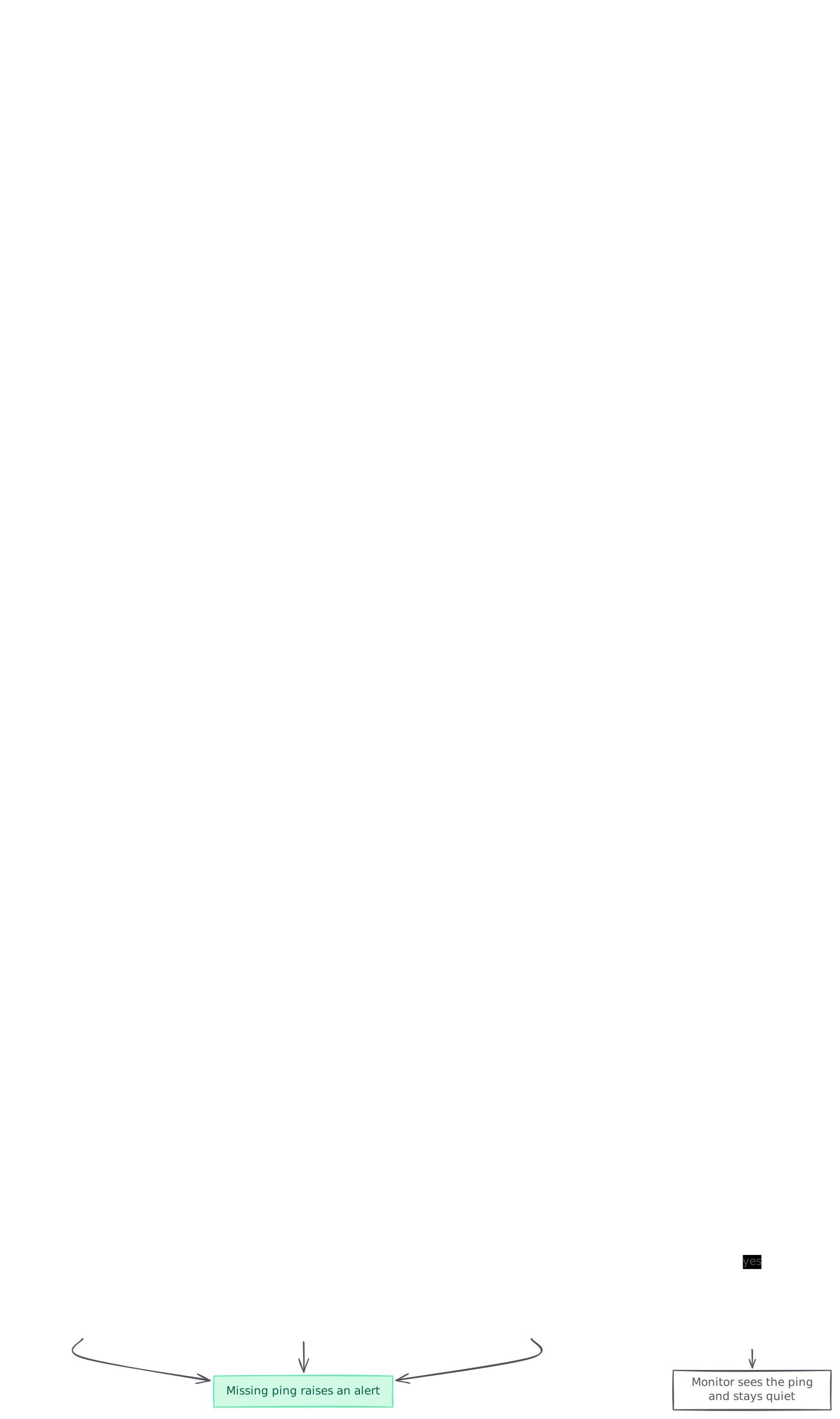
graph TB A[Schedule fires in UTC] --> B{Request reaches the function?} B -->|no| C[No run and no log line] B -->|yes| D{Auth, redirect or cache in the way?} D -->|yes| E[401, 3xx or cached reply, job skipped] D -->|no| F{Work finishes within maxDuration?} F -->|no| G[Error or timeout, no retry] F -->|yes| H[Route pings heartbeat on success] H --> I[Monitor sees the ping and stays quiet] C --> J[Missing ping raises an alert] E --> J G --> J style C fill:#fee2e2,stroke:#fca5a5,color:#7f1d1d style E fill:#fee2e2,stroke:#fca5a5,color:#7f1d1d style G fill:#fee2e2,stroke:#fca5a5,color:#7f1d1d style J fill:#d1fae5,stroke:#6ee7b7,color:#065f46 style H fill:#d1fae5,stroke:#6ee7b7,color:#065f46
What Vercel’s dashboard and CLI show you about cron runs
Use Vercel’s tools for diagnosis. They can’t serve as your alarm.
- Settings > Cron Jobs lists every job with its path and schedule. View Logs opens the runtime logs filtered to that job, such as
requestPath:/api/cron/daily-digest, where you see the status code of each invocation. - Runtime logs have a Request Type filter, and
cronis one of its values, so you can see every scheduled invocation in one place. Requests that return 4xx are marked as warnings and requests that return 5xx are marked as errors. - The deployment summary shows the cron jobs each deployment registered, and you can run one from there.
- The CLI (
vercel cronsis in beta) lists jobs and triggers one that’s already deployed to production.
# List the crons on the deployed project, as JSON for diffing
vercel crons ls --format json

# Trigger a production cron job now
vercel crons run /api/cron/daily-digest

# Recent errors in production
vercel logs --environment production --query 'level:error' --since 1h
By default, vercel logs returns the latest 100 entries from the last 30 minutes. It returns a fixed set of results and doesn’t stream.
The catch is retention. A daily job’s log line on Hobby is gone an hour after it’s written, long before anyone thinks to look.
Vercel runtime log retention by plan, from Vercel's runtime logs docs
| Plan | Runtime log retention |
|---|---|
| Hobby | 1 hour |
| Pro | 1 day |
| Pro with Observability Plus | 30 days |
| Enterprise | 3 days |
| Enterprise with Observability Plus | 30 days |
If you need history, use a log drain to forward logs to a store you control. That also lets you alert on 5xx responses from /api/cron/* routes. Even so, a run Vercel never delivered still leaves nothing to drain.
Adding a success-only heartbeat to a Vercel cron route
A heartbeat monitor is a secret URL that expects a request on a schedule. If no request arrives by the expected time plus a grace period, it alerts. Hyperping healthchecks, OnlineOrNot heartbeats and CronSignal all publish guides for Vercel cron jobs, and any heartbeat service works with the steps below.
Step 1: Create one monitor per cron entry
Create a separate heartbeat for each entry in vercel.json. If two entries share a path with different schedules, give each one its own monitor and pick the URL from the x-vercel-cron-schedule header. Copy the cron expression exactly and set the monitor’s timezone to UTC. A shared monitor hides a dead job behind a healthy one.
Step 2: Store the ping URL as a production environment variable
printf '%s' 'https://heartbeat.example.com/your-secret-token' \
  | vercel env add DAILY_DIGEST_HEARTBEAT_URL production
vercel deploy --prod
printf '%s' keeps a trailing newline out of the value. Redeploy afterwards, because a running deployment doesn’t pick up variables added after it was built. Treat the ping URL as a secret: anyone who has it can report a fake success. Don’t prefix it with NEXT_PUBLIC_ and don’t commit it.
Step 3: Ping only after the work succeeds
// app/api/cron/daily-digest/route.ts
import type { NextRequest } from 'next/server';
import { sendDailyDigest } from '@/lib/digest';

export const dynamic = 'force-dynamic'; // never serve a cached response
export const maxDuration = 60;

async function ping(url: string | undefined) {
  if (!url) return;
  try {
    await fetch(url, { method: 'POST', signal: AbortSignal.timeout(5000) });
  } catch (err) {
    console.error(JSON.stringify({ event: 'cron.heartbeat_failed', message: String(err) }));
  }
}

export async function GET(request: NextRequest) {
  const secret = process.env.CRON_SECRET;
  if (!secret || request.headers.get('authorization') !== `Bearer ${secret}`) {
    return new Response('Unauthorized', { status: 401 });
  }

  const schedule = request.headers.get('x-vercel-cron-schedule');
  const started = Date.now();

  try {
    const result = await sendDailyDigest(); // must throw if the work fails
    console.log(JSON.stringify({ event: 'cron.daily_digest.done', schedule, ms: Date.now() - started, result }));
  } catch (err) {
    console.error(JSON.stringify({ event: 'cron.daily_digest.failed', schedule, ms: Date.now() - started, message: String(err) }));
    return new Response('Job failed', { status: 500 });
  }

  await ping(process.env.DAILY_DIGEST_HEARTBEAT_URL);
  return Response.json({ ok: true });
}
The order of the steps matters:
- The secret check comes first. A stray visitor gets a 401 and never sends a ping.
- The work finishes before the response goes out. Don’t hand it to
after()orwaitUntil(). If you do, the status code and the ping both reflect a run that hasn’t finished. - A failure returns 500 and sends no ping. The 500 marks the run as an error in Vercel’s logs, and the missing ping triggers the alert.
- The ping has a timeout and a try/catch. A slow monitor can’t break the job or use up its time budget.
- The job function must throw on failure. If it catches its own error and returns normally, the route pings success for work that never happened. If it returns a result object, check that result before you ping.
Step 4: Size the grace period for your plan
The grace period is how long the monitor waits after the expected time before it alerts. Set it to the scheduler’s own slack plus your job’s run time:
- Hobby: a run can start anywhere in the scheduled hour, so the grace period has to exceed 60 minutes plus the run time. OnlineOrNot’s Vercel guide uses 70 minutes for a daily job with a one-minute function budget. Anything around five minutes will alert on runs that are on time by Vercel’s rules.
- Pro and Enterprise: runs start within the scheduled minute, so a few minutes plus the run time is enough. Keep the grace period shorter than the interval between runs, so a missed run alerts before the next one is due.
Step 5: Prove the route does the work, then prove the alert fires
First, confirm the route rejects requests without the secret:
curl -s -o /dev/null -w "%{http_code}\n" https://your-app.vercel.app/api/cron/daily-digest401Next, confirm the cron is in the build output. Vercel’s troubleshooting guide suggests running a production build locally and checking .vercel/output/config.json:
vercel build --prod
jq '.crons' .vercel/output/config.json
Then run the job with vercel crons run /api/cron/daily-digest. Check that the log shows cron.daily_digest.done and that the monitor records its first ping. Finally, test the alert with a separate test job that has its own monitor. Make that job throw, wait out the grace period, and check that the alert reaches a person. Don’t break a real production job to run this test.
Making a missed or repeated run safe
Monitoring tells you a run went wrong. The job’s design decides whether that costs you anything. Vercel’s guidance is to make cron work idempotent and reconciliation-based:
- Process everything since the last successful run, and record a timestamp when a run finishes. After a missed run, the next one catches up on its own.
- Make each write safe to repeat. Vercel’s own example: setting a user’s status to active is safe to run twice, while adding 10 to a credit balance is not. Use unique IDs for events you’ve already handled.
- Use a lock when runs can overlap. If a job runs longer than its interval, Vercel can start a second instance while the first is still running. A Redis distributed lock stops them both doing the same work. A variable in memory won’t, because each instance runs in its own process.
- Split long jobs into smaller batches if they get close to
maxDuration.
With this design, one missed daily run means a late run and no lost data. The heartbeat alert then tells you to check, without forcing a panicked manual rerun.
Where Vercel cron monitoring goes wrong
- Pinging at the start of the route, or in a
finallyblock. The monitor sees a success for every run that crashed. Fix: ping once, after the awaited work, on the success path only. - Reading a 200 in the logs as proof. A cached response, a handler that swallowed its error, or work deferred past the response all log a 200. Fix: set
force-dynamic, make the job throw on failure, and log a named done event with counts you can check. - A five-minute grace period on Hobby. It alerts on runs that are on time by Vercel’s rules, and people learn to ignore it. Fix: allow more than an hour plus the run time.
- Middleware catching the cron path. Auth middleware redirects the scheduler to a login page and the run ends on a 3xx. Fix: exclude
/api/cronfrom the middleware matcher and checkCRON_SECRETin the route. CRON_SECRETset only for Preview, or added after the last production deploy. Every run returns 401. Fix: set it for Production, redeploy, and alert on 401s from cron paths.- Testing on a preview URL. The scheduler never calls previews. Fix: confirm the job appears under Settings > Cron Jobs on production, then use
vercel crons run. - Expecting local dev to run the schedule.
vercel devandnext devdon’t run crons. Fix: call the route yourself, keeping in mind that your browser follows redirects and the scheduler doesn’t. - Scheduling in local time. The timezone is always UTC, so a job meant for a local morning shifts by an hour when daylight saving starts or ends. Fix: write the expression in UTC and use the same expression on the monitor.
- Relying on Vercel’s logs for history. On Hobby they last an hour. Fix: on Pro or Enterprise, drain them to a store with the retention you need. Drains aren’t available on Hobby, so there, send the job’s own log events from the function to an external logging service. In both cases, keep the heartbeat as the alarm.
A checklist for every Vercel cron job
- The route checks
CRON_SECRETand the variable is set for Production. - The route sets
dynamic = 'force-dynamic'and isn’t covered by redirecting middleware. - The work finishes before the response, and the job throws when it fails.
- One heartbeat monitor per cron entry, in UTC, pinged only on success.
- The grace period fits the plan: over an hour on Hobby, a few minutes on Pro.
- The alert has been tested with a separate failing job and reaches a person.
- The job catches up from the last successful run and is safe to run twice.
- Logs are drained somewhere they’re kept long enough to debug a failure.
Watching scheduled jobs on Vercel with Polylane
Polylane detects production issues and fixes them by opening pull requests. It connects to Vercel, so when a scheduled job stops working, it works out why, and the fix arrives ready for your team’s normal review.
Running on Vercel? See how Polylane monitors Vercel in production.
Common questions.
Does Vercel alert me when a cron job fails?
Vercel's cron docs describe no built-in alerting for failed runs. Vercel doesn't retry a failed invocation, and the docs point you to the runtime logs, which you open from View Logs on the Cron Jobs settings page. To get an alert, add an outside heartbeat monitor, or forward the logs through a drain to a tool that can alert on 5xx responses.
Why does my Vercel cron job have no logs at all?
Delivery is best effort. When a transient network error stops the request reaching your function, no runtime log is created. Cached and redirected responses don't appear in the cron logs either. Add export const dynamic = 'force-dynamic' to the route, check that no middleware redirects the cron path, and confirm the cron is in .vercel/output/config.json after vercel build --prod.
What grace period should a heartbeat monitor use on the Hobby plan?
More than an hour, plus your job's run time. Hobby cron jobs run once per day and can fire anywhere within the scheduled hour. OnlineOrNot's Vercel guide uses 70 minutes for a daily job with a one-minute function budget. On Pro and Enterprise, runs start within the scheduled minute, so a few minutes plus the run time is enough.
Do Vercel cron jobs run on preview deployments?
No. Vercel invokes cron jobs only on the production deployment URL. A cron route that works on a preview has never been called by the scheduler. Check Settings > Cron Jobs on production, then trigger the job with vercel crons run /api/cron/your-job.
How long does Vercel keep cron job logs?
Cron runs are logged as ordinary function invocations, so runtime log retention applies: 1 hour on Hobby, 1 day on Pro and 3 days on Enterprise. Pro and Enterprise with Observability Plus keep 30 days. For longer history, forward logs with a log drain.
How do I stop a Vercel cron job from running twice at once?
Use a distributed lock, such as a Redis lock, that the job takes before it starts and releases when it finishes. Vercel can start a second instance if a run lasts longer than its interval, and it can occasionally deliver the same scheduled run twice. Make the writes idempotent as well, so a duplicate run changes nothing.
Sources (12)
- Vercel: Managing Cron Jobs
- Vercel: Cron Jobs
- Vercel: Usage and Pricing for Cron Jobs
- Vercel: Troubleshooting Vercel Cron Jobs
- Vercel: Runtime Logs
- Vercel: Drains
- Vercel CLI: vercel crons
- Hyperping: How to Monitor Vercel Cron Jobs and Catch Missed Runs
- OnlineOrNot: How to monitor Vercel cron jobs
- CronSignal: Monitor Vercel Cron Jobs
- Polylane documentation (full text)
- Polylane full content
Boris Tane is the founder of Polylane. He previously founded Baselime, observability for the future of the cloud, which Cloudflare acquired. At Cloudflare he built and led the Workers observability team.
More in this series
- 1 How to Monitor a Django App on Render
- 2 How to Monitor a FastAPI App on Railway: Logs, Traces and Alerts
- 3 How to Monitor a Supabase App in Production
- 4 How to Debug Cloudflare Workers Errors: Logs, Traces and Error Codes
- 5 How to debug Vercel function timeouts
- 6 Vercel 504 Gateway Timeout on Serverless Functions: Causes and Fixes
- 7 Cloudflare Workers error 1101: causes and how to fix it
- 8 Cloudflare Hyperdrive connection errors: causes and fixes
- 9 How to Monitor a Convex App in Production
- 10 How to roll back a Cloudflare Workers deployment
- 11 How to Monitor Vercel Cron Jobs: Heartbeats, Logs and Alerts
- 12 How to reduce Vercel Function cold starts
- 13 How to Monitor a Next.js App on Render
- 14 Modal container out of memory: find the cause and fix it
- 15 Fix Railway “Healthcheck failed!” on deploy
Related
- How to monitor a vibe-coded app in production Monitor a vibe-coded app in production: surface swallowed errors, add a health route, tag deploys, watch cron jobs and alert on what users feel first.
- What a SaaS Startup Should Monitor in Production What to monitor in production at a SaaS startup: outside uptime checks, per-route errors and latency, the database, background jobs, sign-in and tenants.
- Fix Vercel “FUNCTION_INVOCATION_FAILED” 500 errors Why a Vercel Function returns 500 FUNCTION_INVOCATION_FAILED, how to find the crash in runtime logs, and how to fix throws, missing env vars, files and memory.
- Railway activity feed filters and cron jobs in the CLI Railway's 16 October 2026 update: filter the activity feed by service, list and trigger cron runs with railway cron, and migrate railway.json to IaC.
- How to Test Cloudflare Cron Triggers with Local Explorer Local Explorer now fires a Worker's scheduled() handler from your browser. Version needs, ad hoc crons, scheduled times, the API for scripts, and the gotchas.